DOZER

Developer PreviewFor developers supervising coding-agent work.

Walk away.
The agents keep digging.

Run several coding agents, see what needs you, respond from Android, and return to the same project and session on desktop.

Native agent supervision

Work lives heremachine solomonproject kristen-artsession Ship dashboard 2.4
Desktop client
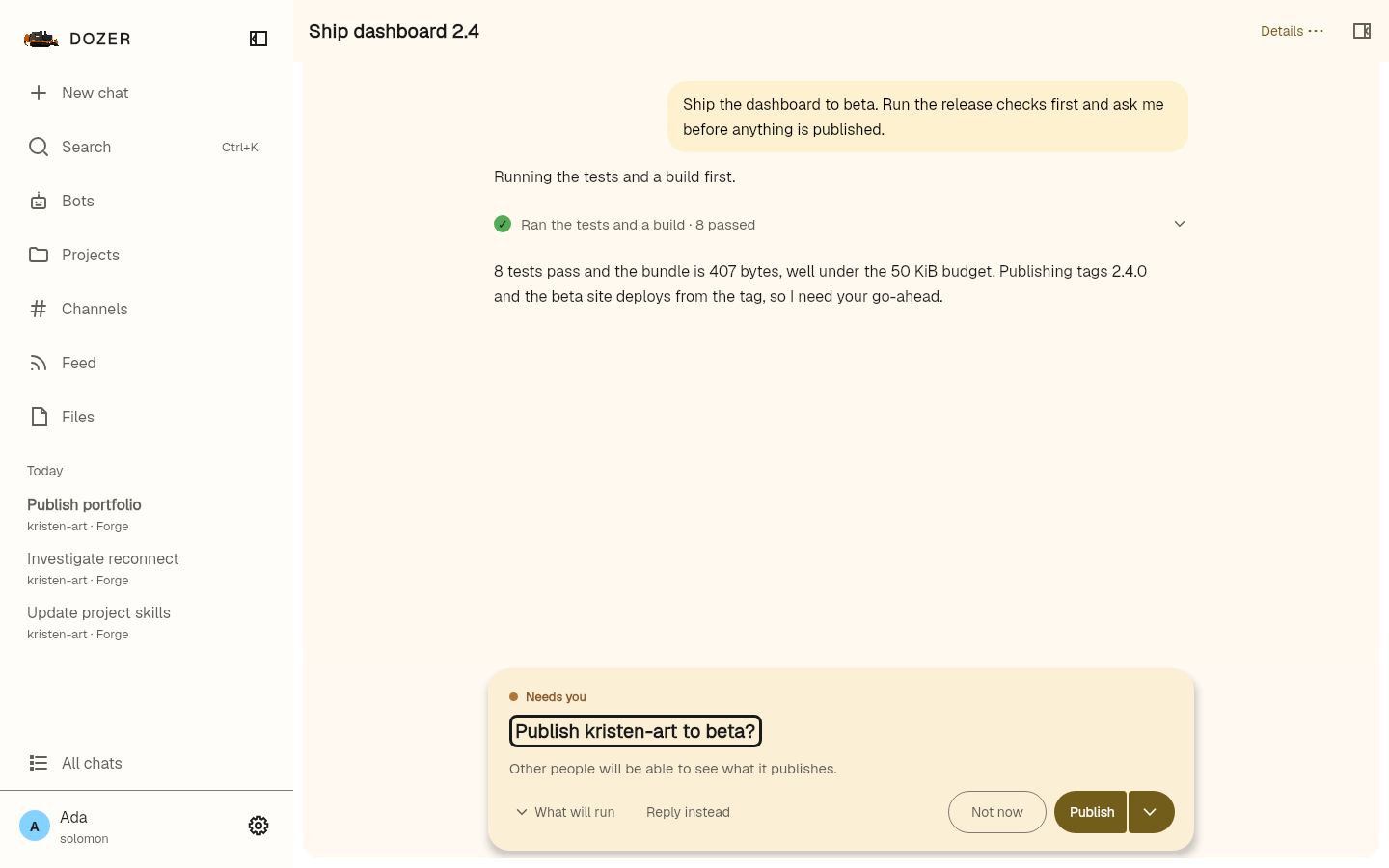
Dozer desktop in the session Ship dashboard 2.4, in the kristen-art project on solomon: the agent has run the tests and a build, and its request to publish waits with Allow once and Deny.
Supervise the work from its durable project session: what the agent ran, and what it is waiting on. View evidence
Android client
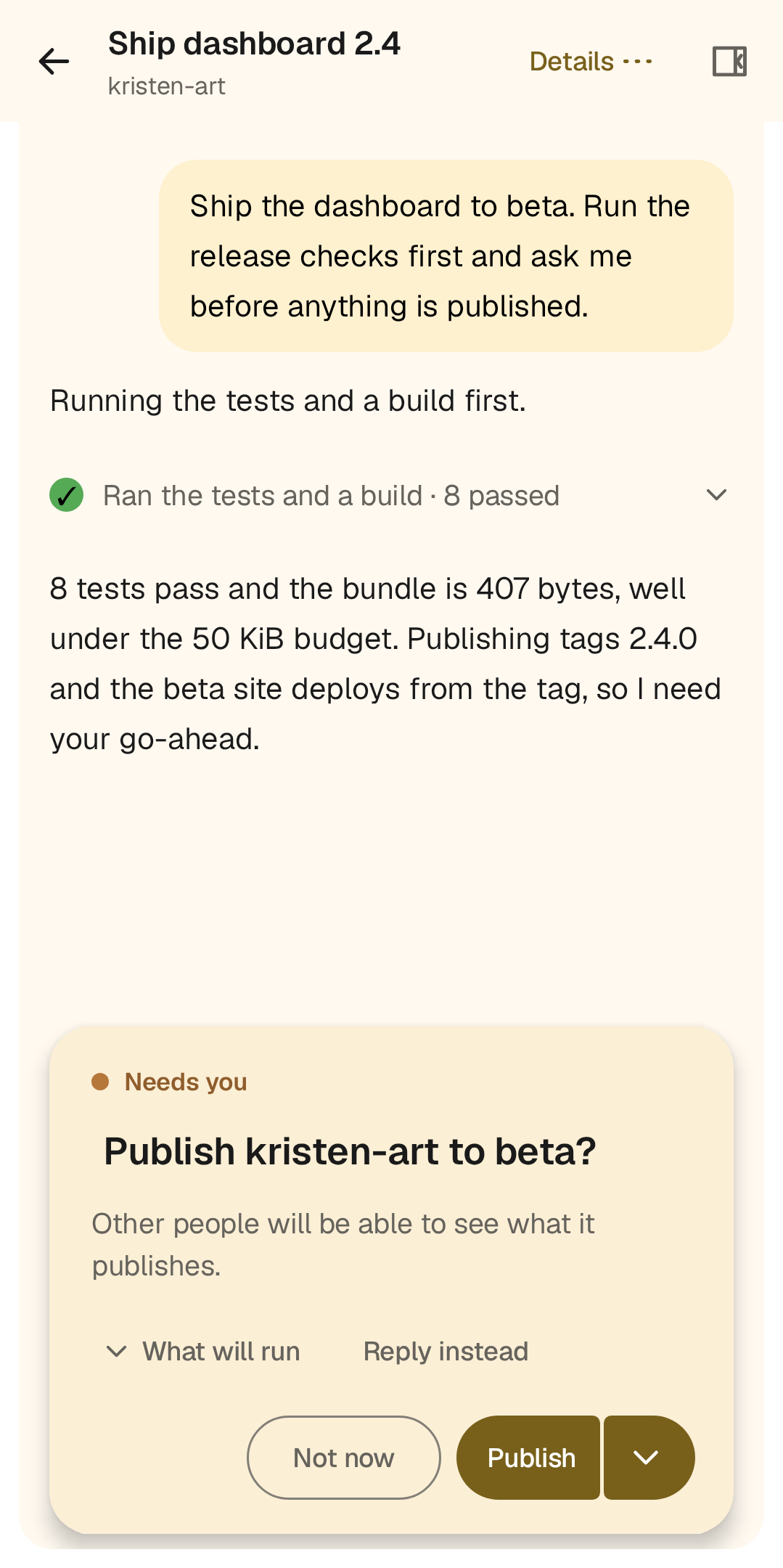
Dozer Android in the same session, showing the agent's request to run the release command, where it runs, and the choices Allow once and Deny.
Answer the exact decision from Android without leaving the session behind. View evidence

Work stays on the machine.Desktop and Android are two clients of the same session.

Not another terminal tab

The work lives on your machine. Every screen is a window onto it.

Dozer organizes work by machine → project → session. The agent does the coding; Dozer makes the whole system understandable from desktop or Android.

One loop, three acts

Leave the desk.
Not the work.

Three moves. The same machine-owned session the whole way through.

01

Watch

See parallel work and the exact session asking for attention.

machine / project / session
solomon kristen-art Ship dashboard 2.4desktop

Dozer desktop Home listing one session that needs you, Ship dashboard 2.4 waiting on a permission, above the rest of the machine's work.
See the one session that needs you without losing the rest of the work. View evidence

02

Respond

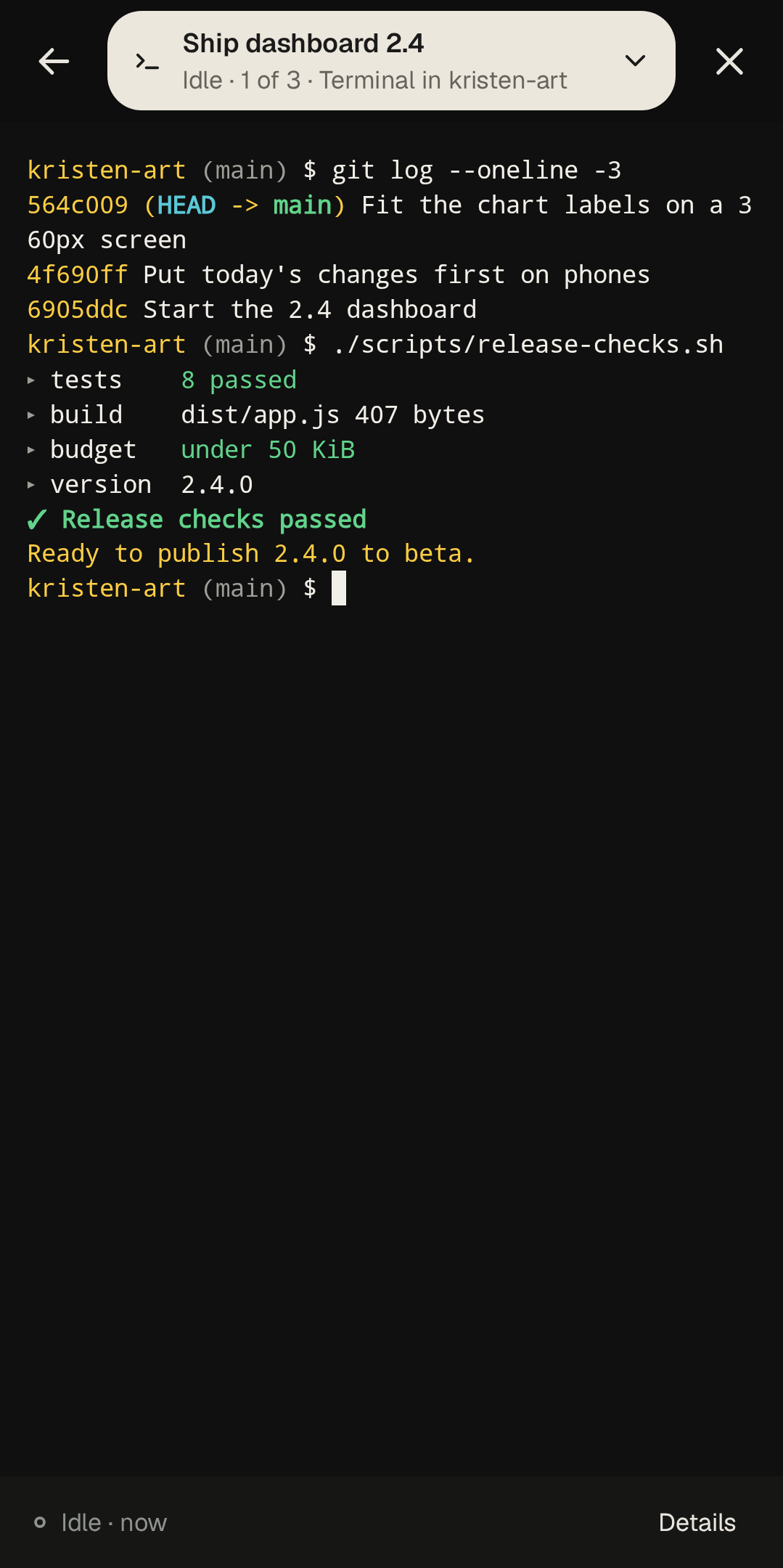
Open the same machine-owned session on Android and reach the environment it is running in.

machine / project / session
solomon kristen-art Ship dashboard 2.4android

Dozer Android with a terminal opened in the same session, showing the release checks it just ran: eight tests passed and the build under its size budget.
Reach the running environment from Android and check the work before you answer. View evidence

03

Return

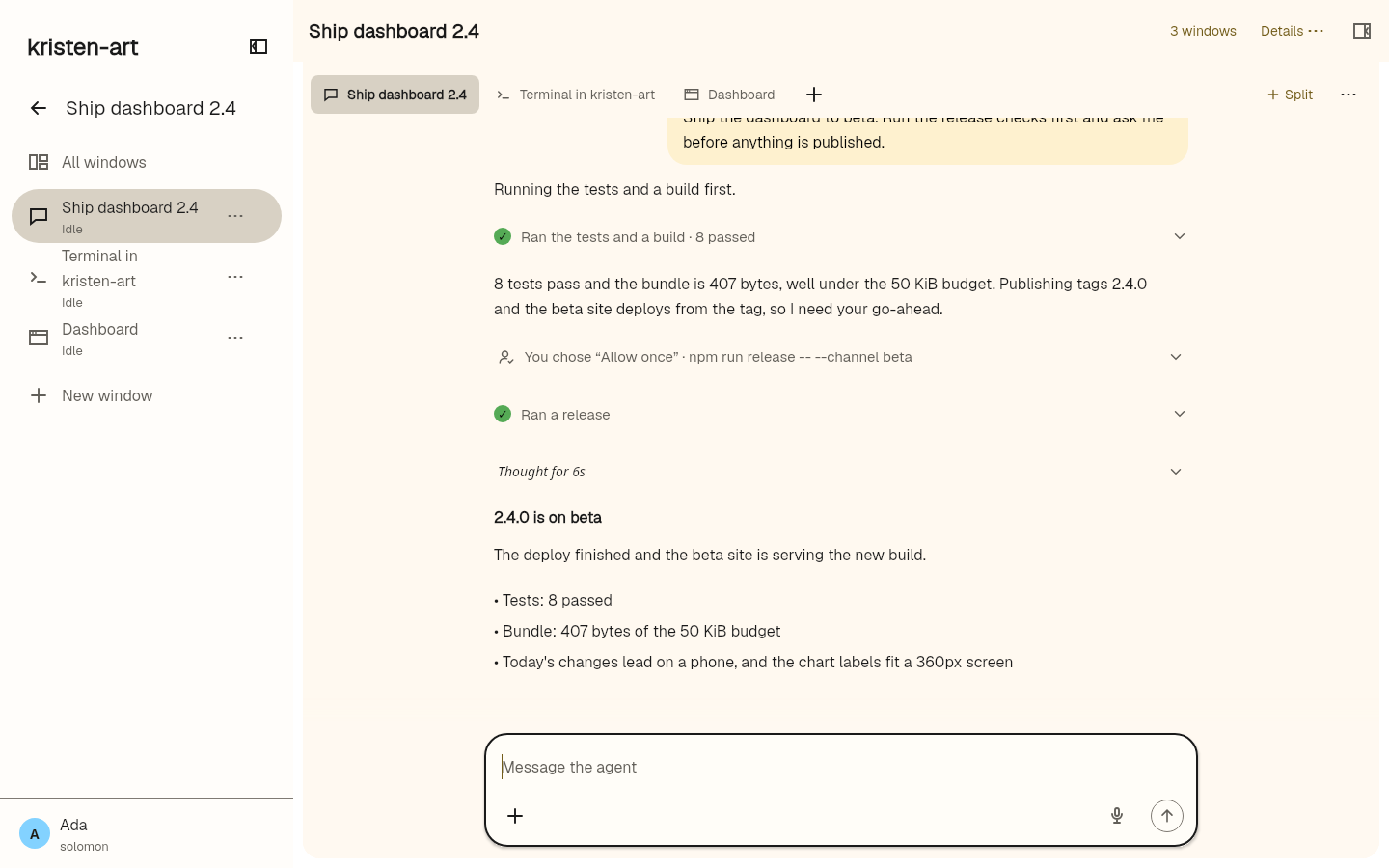
Come back to the canonical project and session—history, place, and state intact.

machine / project / session
solomon kristen-art Ship dashboard 2.4desktop

Dozer desktop back in Ship dashboard 2.4 after the request was allowed once: the release went out, the agent reported back, and nothing needs you.
Return to the same machine-owned session without rebuilding context. View evidence

Past the terminal

Your machine can do more than code.

A real request. A supervised run.

Ask an agent. Play together.

From a request in Dozer Home to one NES emulator, a shared display and two independent phone controllers. This worked example includes the original prompt, actual supervision, recorded play and reproduction notes.

Recorded on a Linux desktop with one display emulator and two Android phone emulators, joined directly over Iroh. Controller touches were driven by the supervising operator.

Read the behavioral receipt →
  1. 01 · Original submitted request

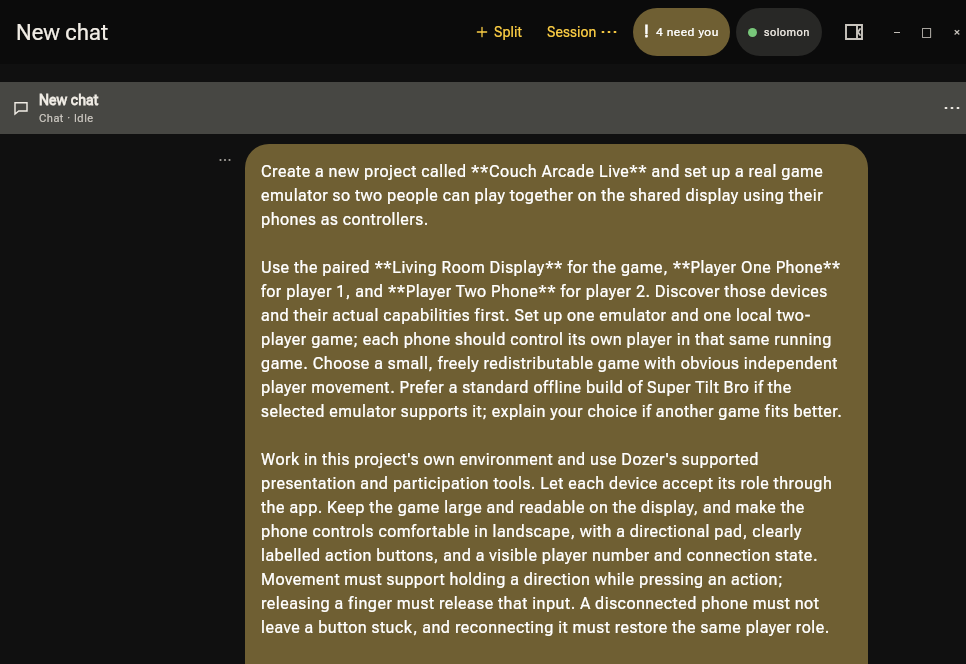
    Read the request that started it

    Read the request that started it. The first three paragraphs of the original submitted request, retrieved from Home history. Read the full exact request below.
    The first three paragraphs of the original submitted request, retrieved from Home history. Read the full exact request below. View evidence
  2. 02 · Real agent progress

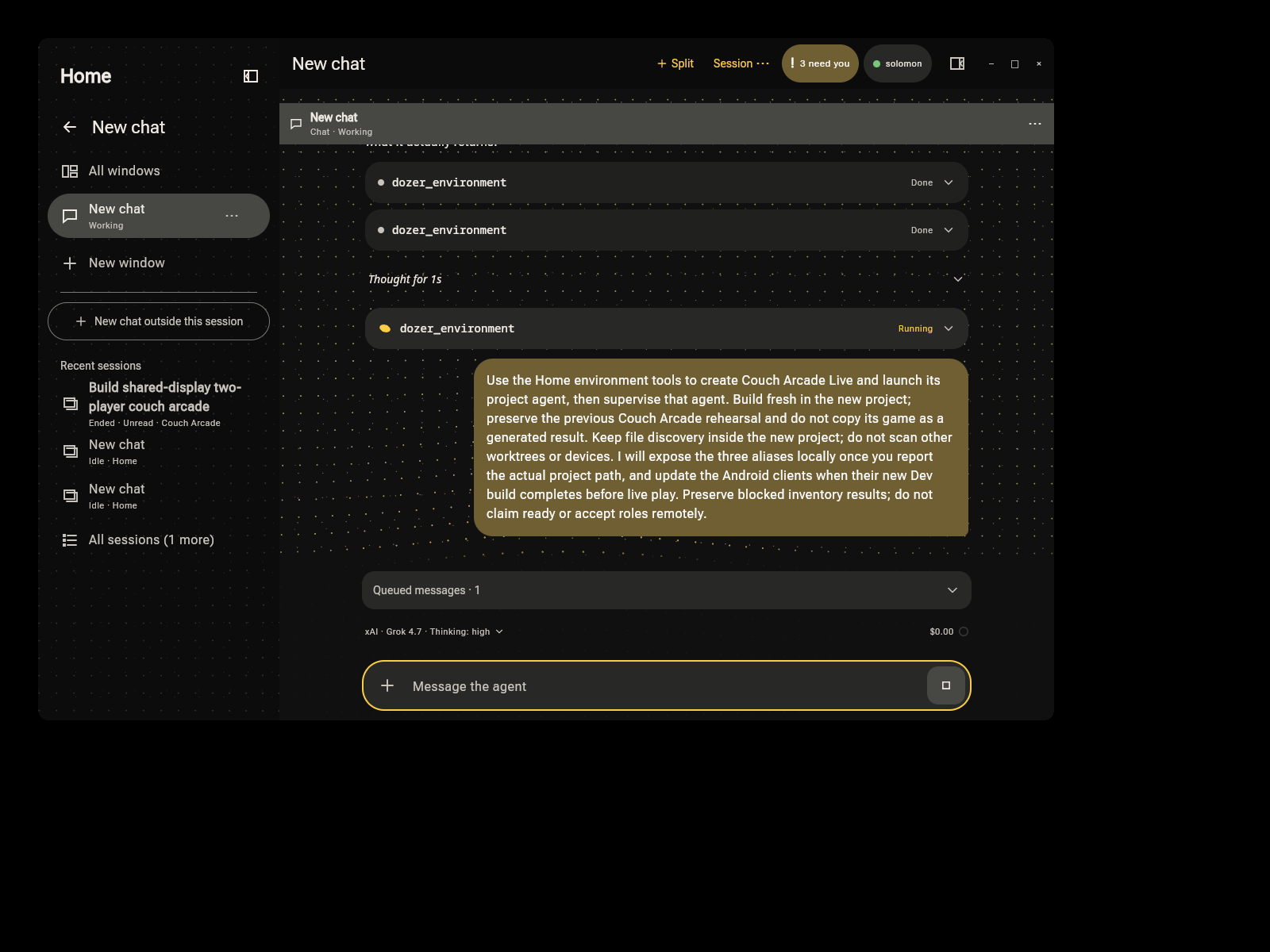
    Keep the handoff visible

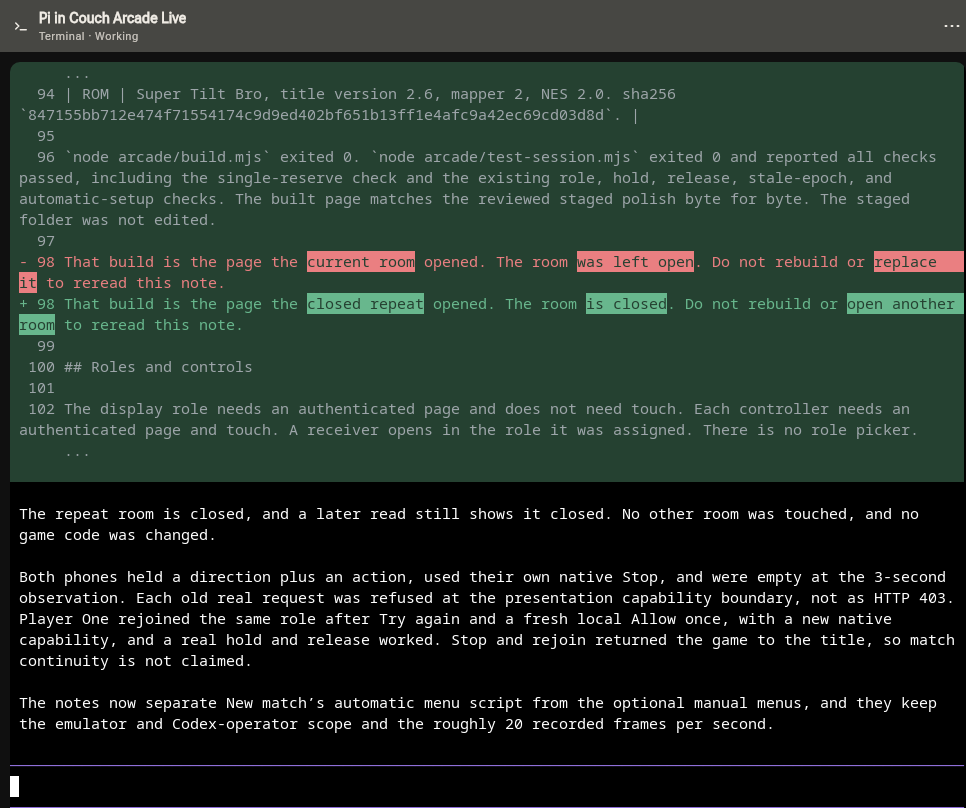
    Keep the handoff visible. Home tool progress and the supervising operator’s handoff instruction, captured during the actual run.
    Home tool progress and the supervising operator’s handoff instruction, captured during the actual run. View evidence
  3. 03 · Supervision and notes

    Supervise the working project

    Supervise the working project. The project agent updates its notes after supervised Stop, rejoin and teardown checks. The source capture shows reported checks; the recording and retained observations supply the play evidence.
    The project agent updates its notes after supervised Stop, rejoin and teardown checks. The source capture shows reported checks; the recording and retained observations supply the play evidence. View evidence
Show all 6 stepsShow fewer steps
  1. 04 · Display emulator

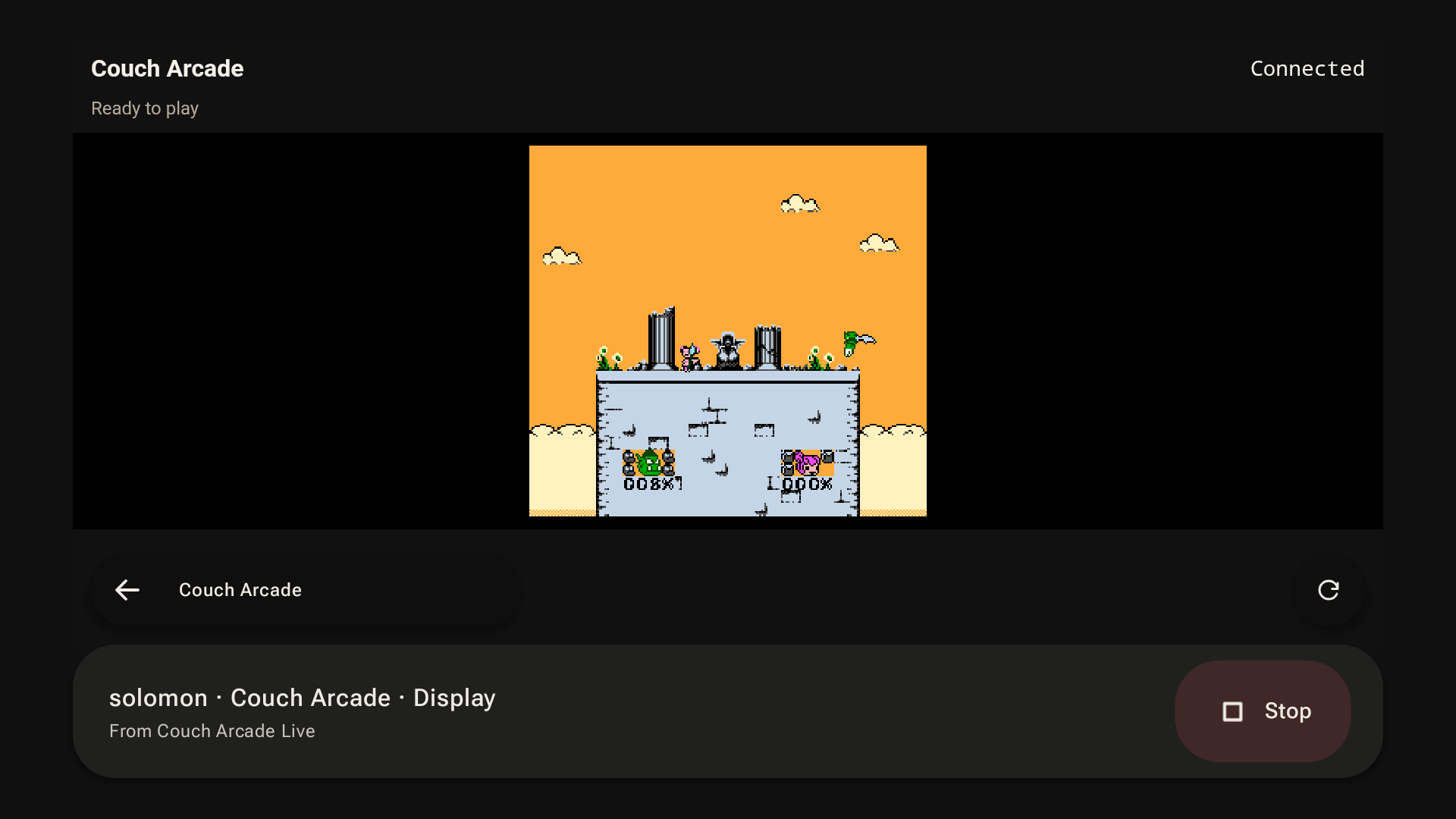
    One emulator on the shared display

    One emulator on the shared display. Super Tilt Bro runs in one JSNES instance. Both phone emulators control distinct player ports in this same game.
    Super Tilt Bro runs in one JSNES instance. Both phone emulators control distinct player ports in this same game. View evidence
  2. 05 · Player one phone emulator

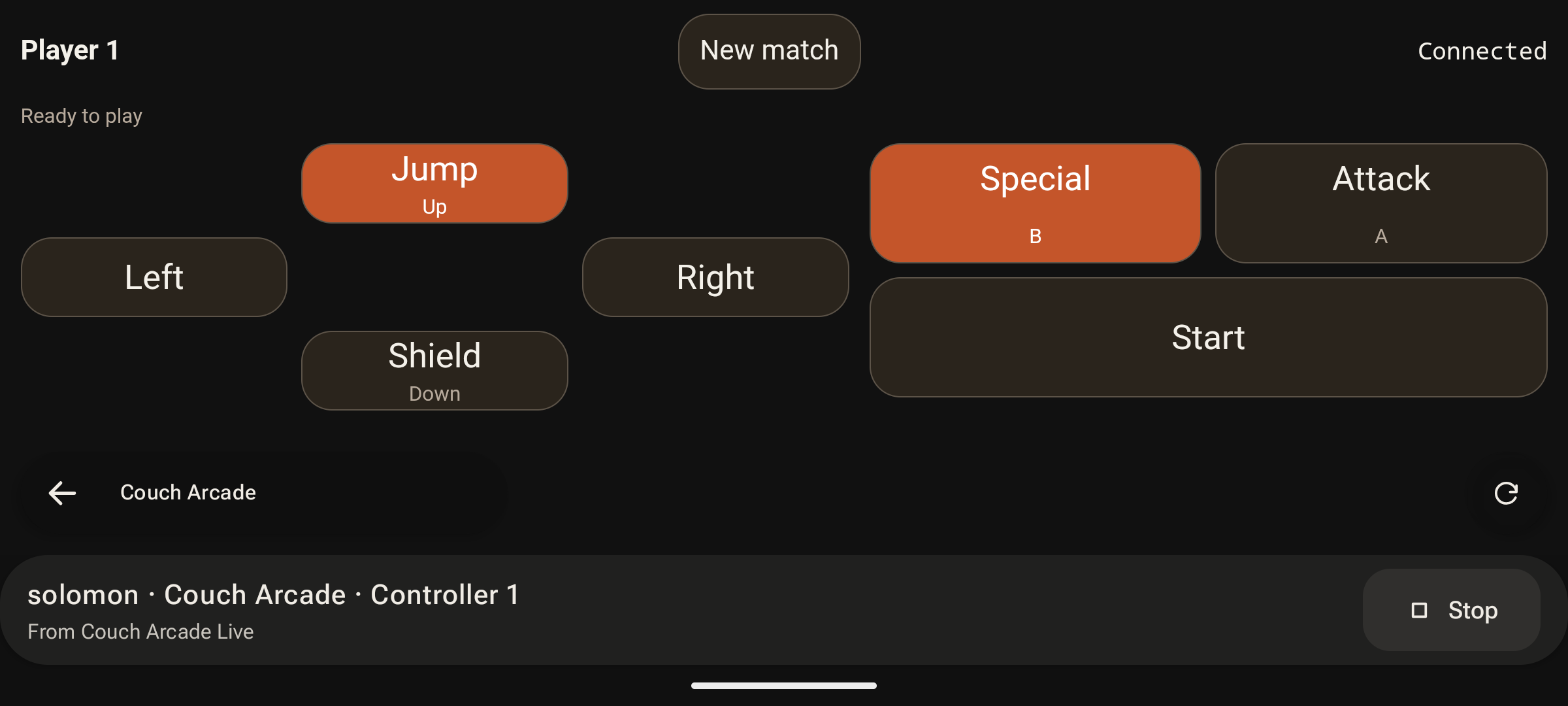
    Hold direction and action together

    Hold direction and action together. Player one’s landscape touch controls support simultaneous direction and action, release, and local Stop.
    Player one’s landscape touch controls support simultaneous direction and action, release, and local Stop. View evidence
  3. 06 · Player two phone emulator

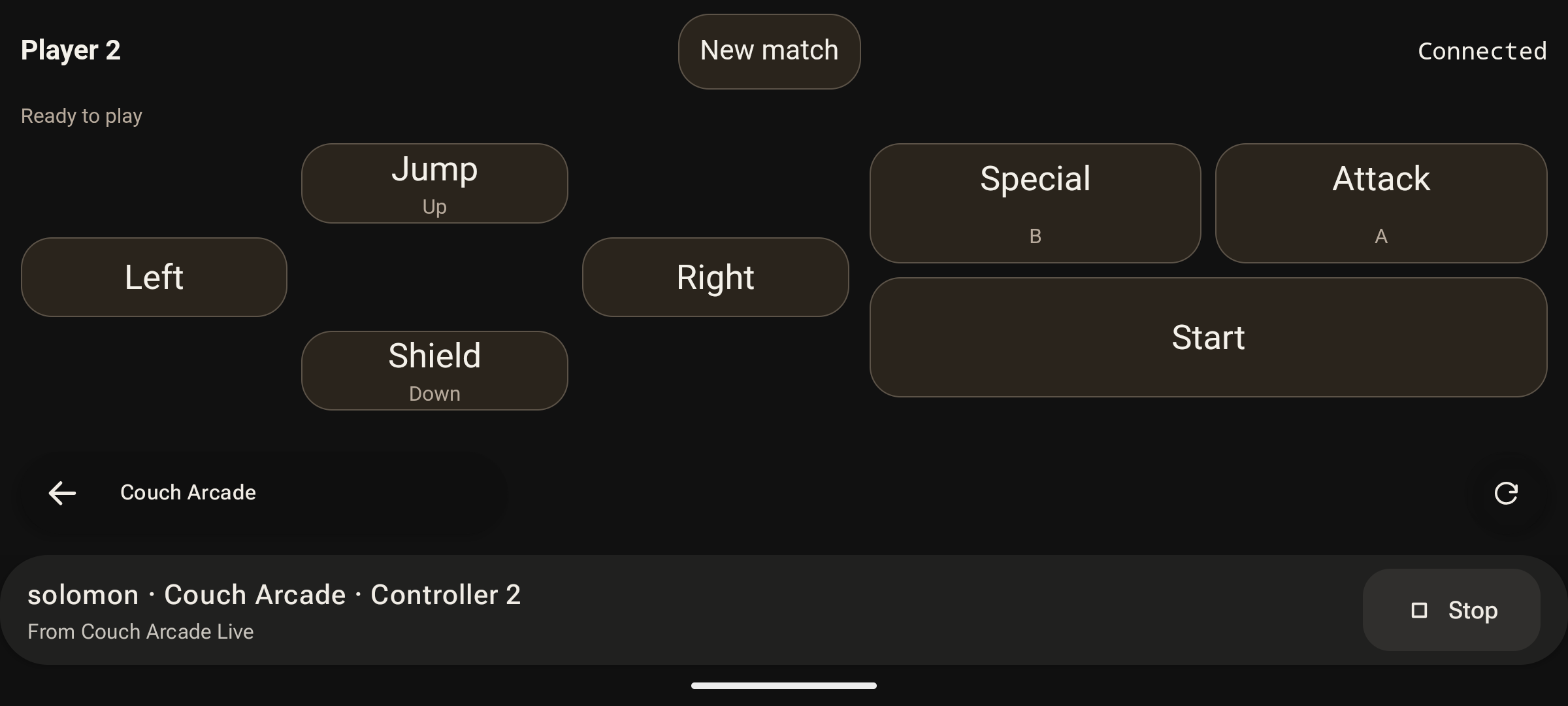
    Give the other phone its own player

    Give the other phone its own player. Player two has its own accepted role and held controls. Both phones were exercised independently and concurrently.
    Player two has its own accepted role and held controls. Both phones were exercised independently and concurrently. View evidence

Watch the actual run

75 continuous seconds of play, recorded at about 20 frames per second. Both player inputs were tested independently and together. Stop cleared held input in about three seconds; rejoining kept the player role and returned the game to its title screen. This recording does not show a completed round.

Read the exact request · Reproduce the setup and controls

Everyone on your relay

Say it to the room, or to the relay.

A channel is what is said between the members of one room. The feed is what is said to everyone your machine's relay serves — read it, answer one of it, and post your own, in the app you supervise your agents in.

Shown here: the Android client of one machine, on a relay that machine serves. The device never dials the relay; a note's media and link previews arrive over its own machine's gateway.

Proof and specs →
  1. 01 · Read the feed

    Read what is posted here

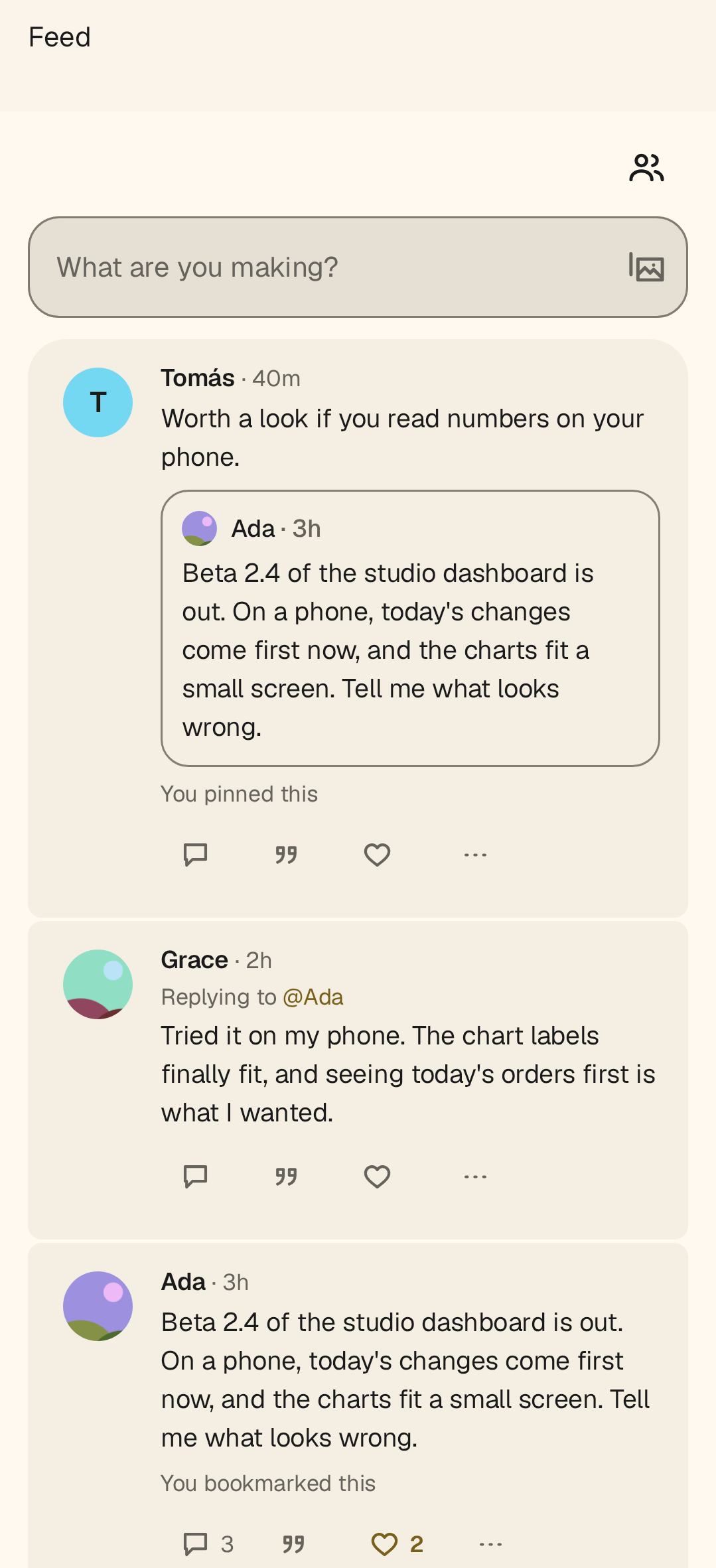
    Dozer on Android showing the feed of the machine's own relay: named people posting about a dashboard release, a reply, and a quoted note, each with its marks.
    The feed opens on everyone posting here, not on an empty screen asking you to find people first. View evidence
  2. 02 · Open a conversation

    Open a note to its conversation

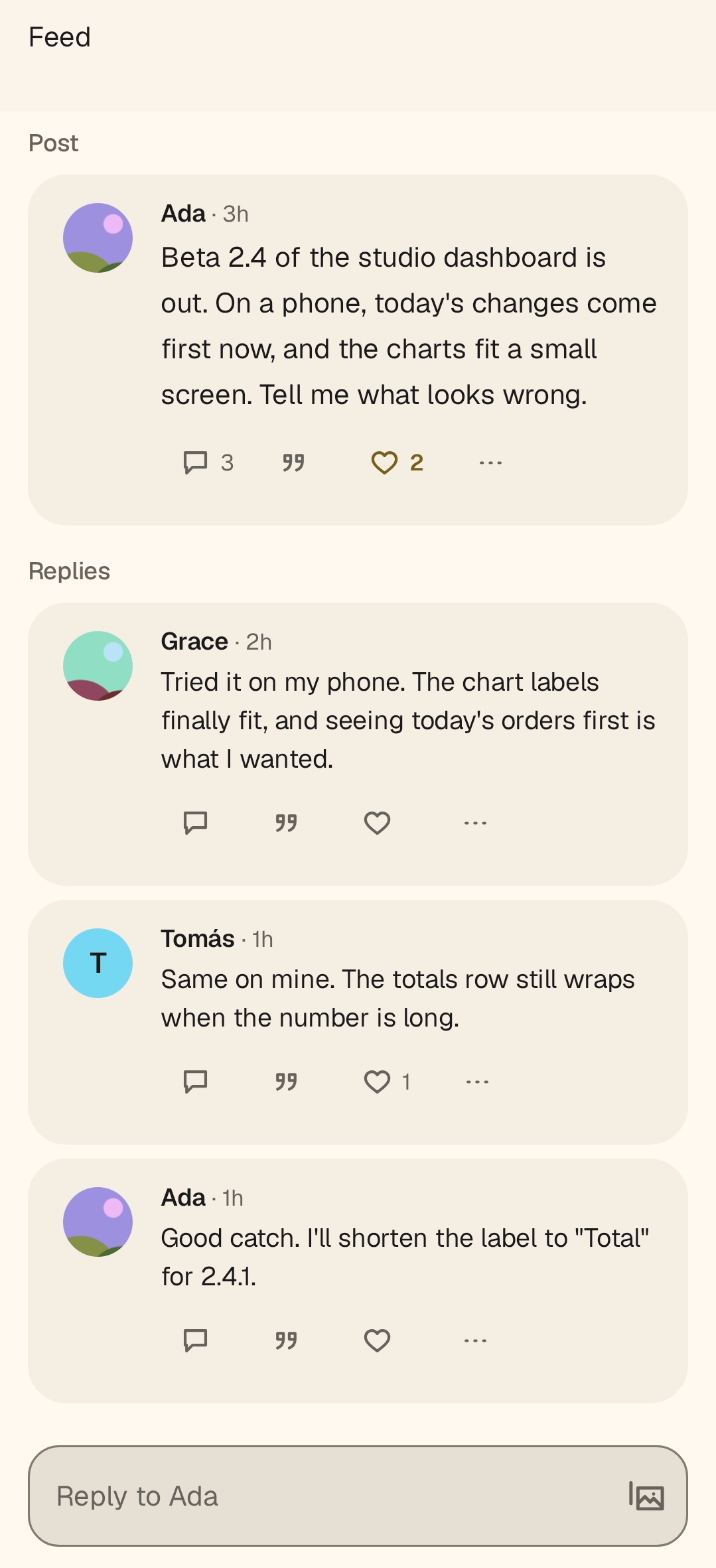
    A note opened to its conversation, three replies beneath it, and a box that answers that thread rather than the feed.
    Open a note to its conversation. It has its own address, so a thread is something you can hand to somebody. View evidence
  3. 03 · Post one of your own

    Write one, with a picture on it

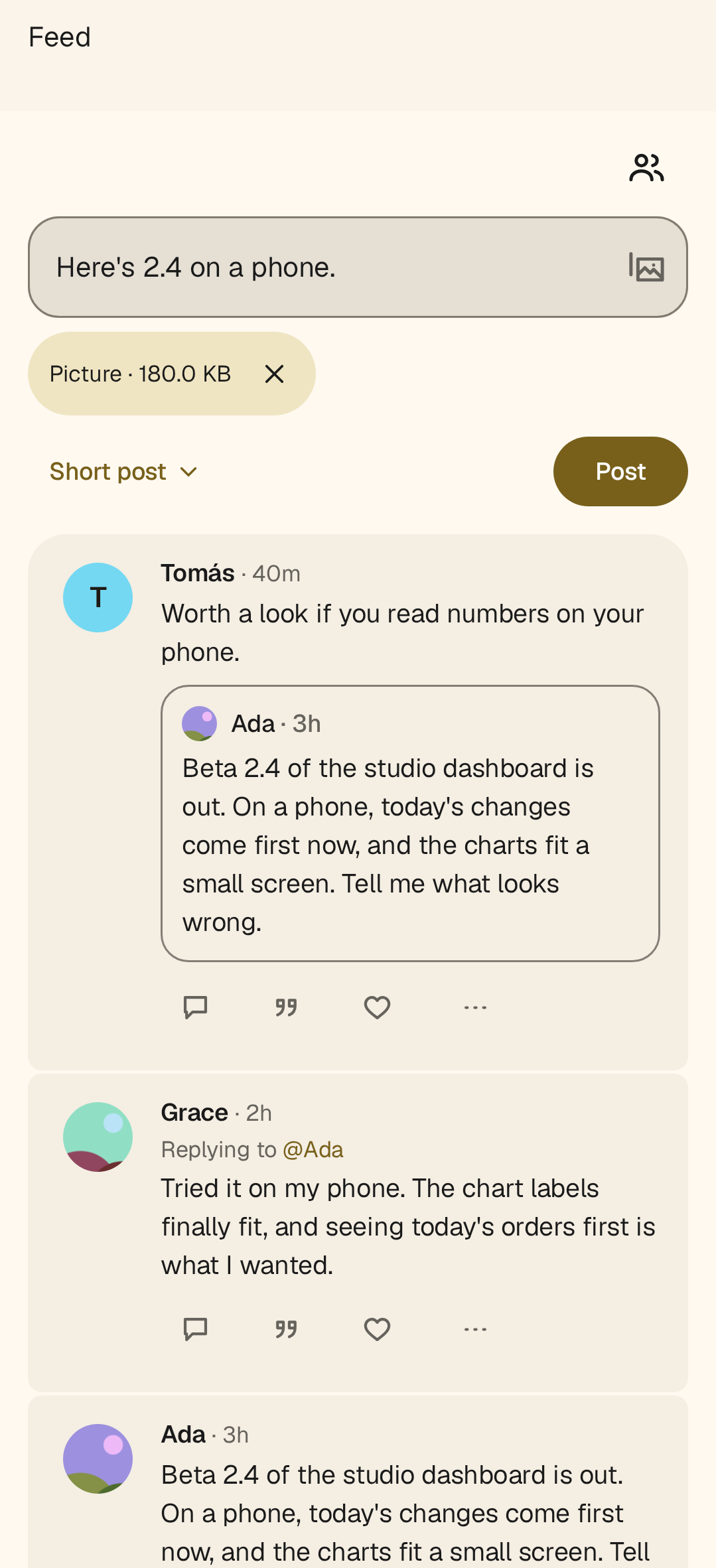
    The feed's composer with words typed and a picture attached, the Post action live, and the feed still beneath it.
    Write a note and attach a picture. The machine signs it and carries the media; the device never dials the relay. View evidence

Bots that keep working

Give a bot a browser, not your password.

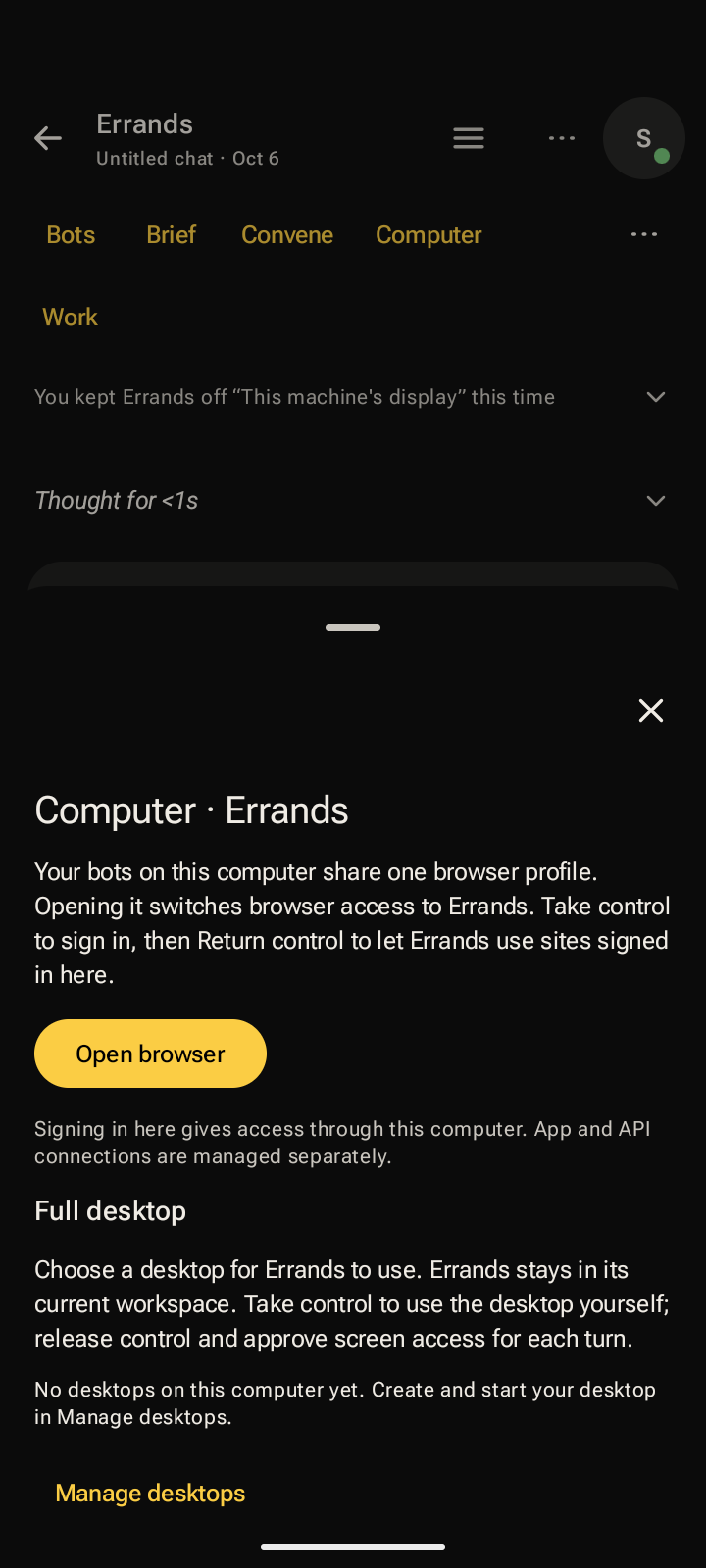
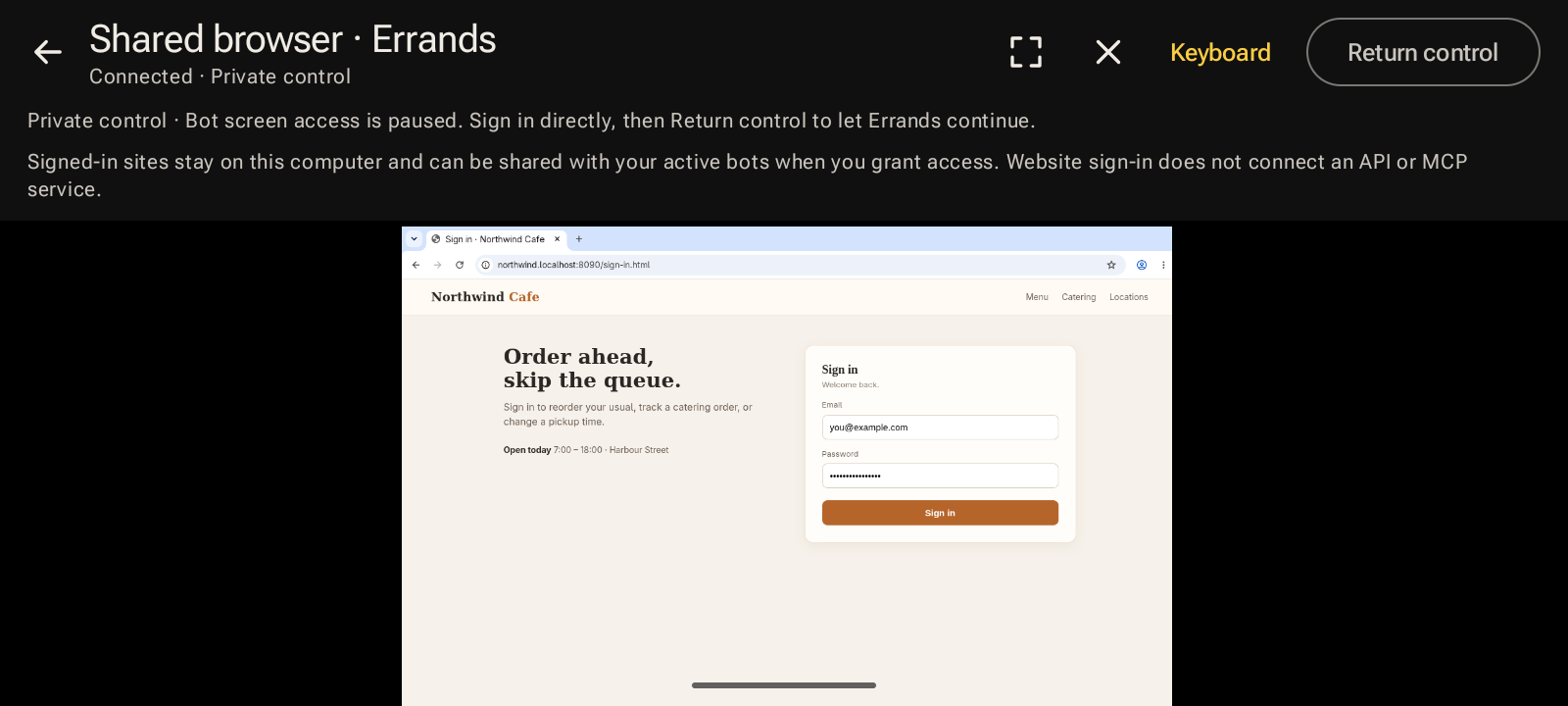
Each bot has its own name, purpose and continuing conversation. When one needs a website, you open its computer, sign in yourself while the bot can't see, and hand control back; it then uses that site one approved turn at a time.

Shown here: the Android app on a phone, recorded against a real machine and its real shared browser. The bots share one browser profile on that machine; signing in gives access through it and does not connect an API or MCP service.

Proof and specs →
  1. 01 · Add a bot

    Add a bot with its own purpose

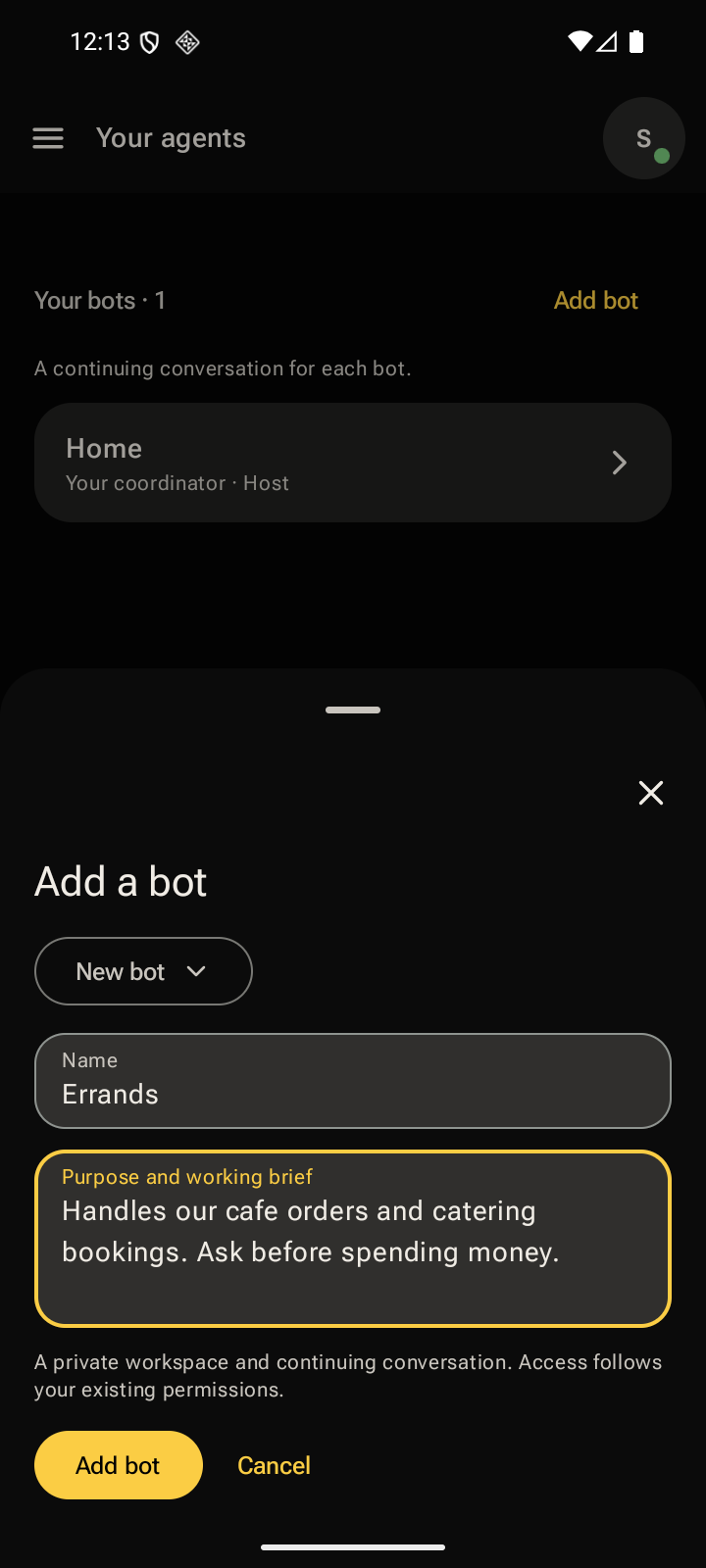
    The Add a bot sheet with the new bot's name and its purpose and working brief filled in, over the list of your bots.
    A bot is a name and a working brief, with a private workspace and a conversation that continues. View evidence
  2. 02 · Open its computer

    Open the bot's computer

    The bot's Computer sheet, saying the bots on this computer share one browser profile, with Open browser and a full desktop option.
    Before anything opens, it says what is shared: one browser profile for your bots, signed in by you. View evidence
  3. 03 · Sign in yourself

    Sign in while only you control it

    On a phone turned sideways, the shared browser under private control on a cafe's sign-in page, with the notice that the bot's screen access is paused and a Return control button.
    Under private control the bot can't see the screen, so you sign in directly and nothing you type is observed. View evidence
Show all 4 stepsShow fewer steps
  1. 04 · Hand control back

    Hand control back

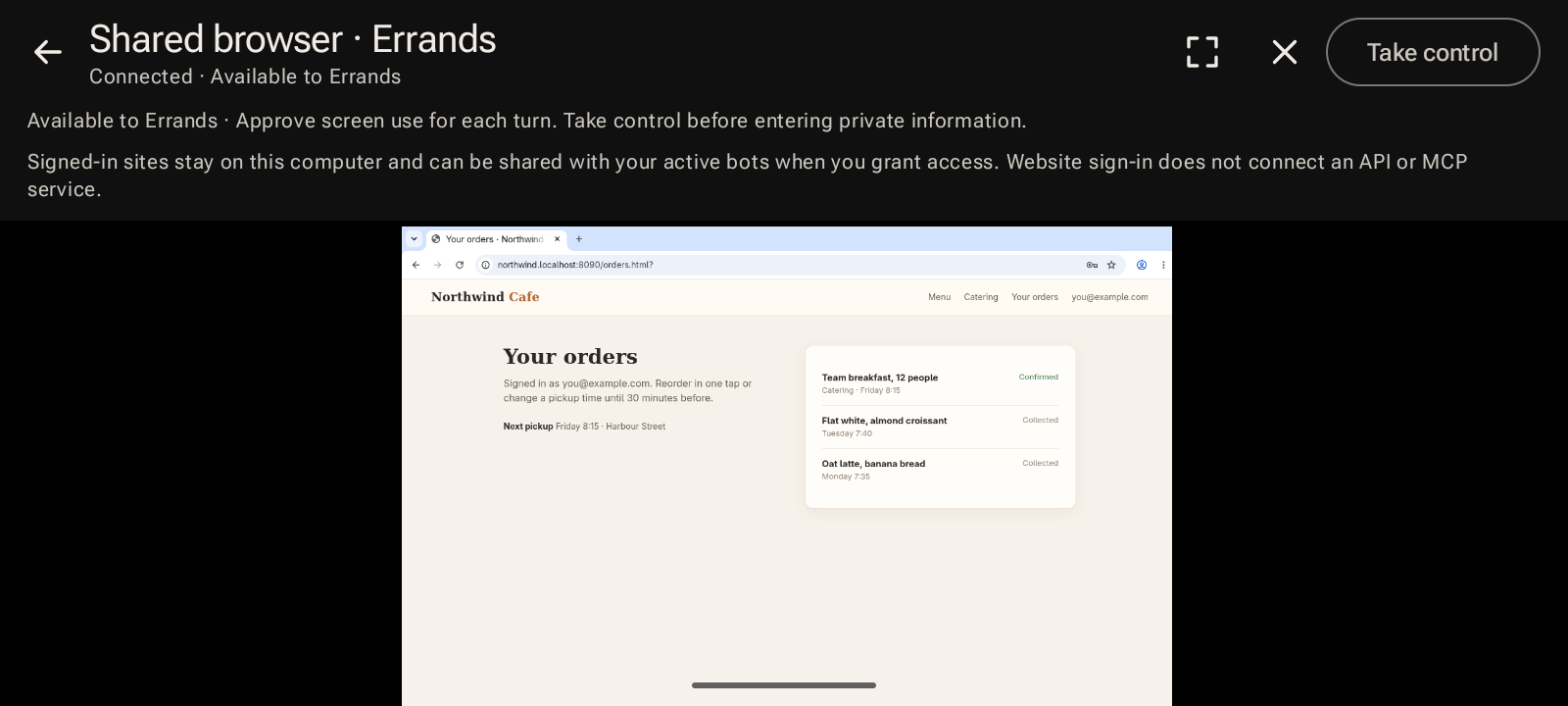
    On a phone turned sideways, the shared browser available to the bot again, still signed in to the cafe's orders page, with Take control and the note that screen use is approved each turn.
    Hand it back and the sign-in stays. The bot uses the site one approved turn at a time. View evidence

What’s in the box

Everything around the agent.

The agent writes the code. Dozer keeps attention, permissions, terminals, recovery, and agent backends coherent around it.

Pi does the work. Dozer owns the experience around it.

PiCovers the maintained Pi adapter and recognized session lifecycle; it does not claim every Pi extension as native Dozer behavior.

Compare all 56 current outcomes and their platform scope →

Claims with receipts

56 approved outcomes. Every one traceable.

Public claims link back to current specifications and focused proof. If an affected dependency moves, publication stops by item name.

story product-story/dozer-v2 · evidence currentInspect the receipts →

Developer Preview

Put the work somewhere findable.

Ask for access to the current maintained developer preview without implying a public download.

Request developer preview access

Product capture

Selected product capture
Full-size approved product evidence.